Introducing the Mave CLI
 3 min read
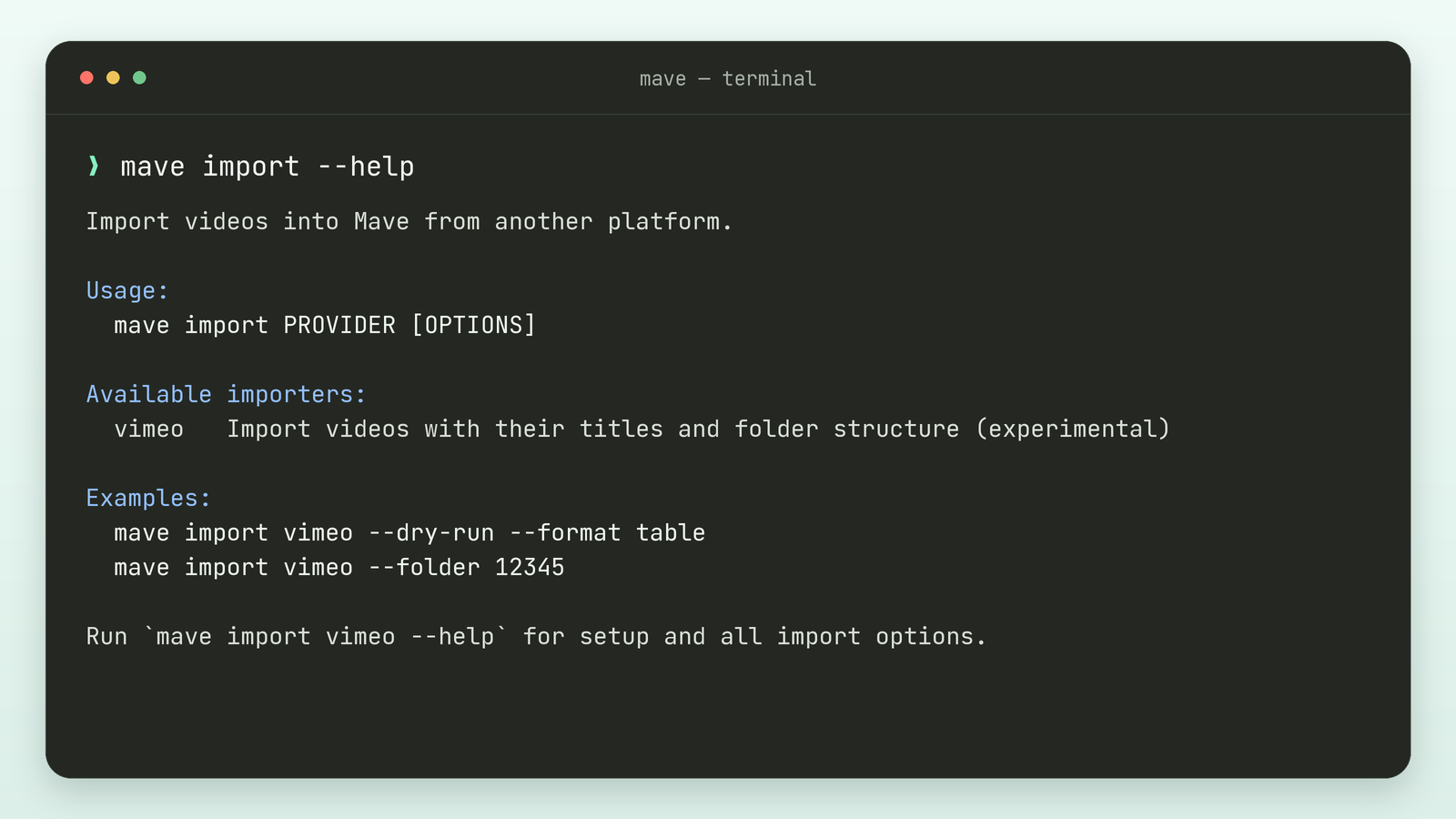
Sometimes you have a video ready to upload and your terminal is already open. Perhaps you’ve just finished rendering a product demo, or you’re working on a website and need to check which videos are available.
Our API lets you build those tasks into your own tools. But for a quick upload or a list of videos, writing the requests and handling authentication is quite a bit of setup.
That’s why we built the Mave CLI. It gives you a set of commands for uploading videos, managing collections and working with your Mave library directly from the terminal.
From a file to a playable video
Install the CLI with Homebrew on macOS or Linux, then connect your account:
brew install maveio/tap/mave
mave login
Login opens your browser, where you choose the Mave space to connect. The CLI saves your login locally, so you’re ready the next time you need it.
Uploading a video takes one command:
mave videos upload ./product-demo.mp4 --waitThe CLI shows upload progress and waits until the video is playable. You can also give it the URL of a video file.
To see what’s in your library, run mave videos list --format table. You can create collections, move videos between them and update titles from the same terminal.
A useful tool for AI assistants
The CLI is also a good fit for AI assistants that can run terminal commands. Instead of writing a script around API endpoints, an assistant can read mave --help and use the available commands directly.
For example, you could ask:
Create a collection called “Product demos” and upload the videos from this folder into it.
The assistant can use the CLI to create the collection, upload the files and check the results. Commands return JSON by default, which makes it easy to use IDs and statuses in the next step. When you’re browsing the results yourself, --format table gives you a readable overview.
That same JSON output is useful in your own scripts and automated workflows, too.
Bringing your Vimeo library along
We’re also introducing a Vimeo importer that brings over your videos with their titles and folder structure.
This feature is experimental.
mave import vimeoThe CLI guides you through creating a Vimeo access token and saves it for future imports. Transferring videos requires a Vimeo plan with API access to video files.
You can select a folder, preview an import with --dry-run or continue an interrupted import with --resume. The CLI documentation explains how to get started.
Try it out
The CLI is open source on GitHub. You’ll find installation instructions and everyday examples in our docs, and mave --help lists the available commands.
We’d love to hear how it fits into your workflow. Share what you’re building in our Discord, or send us an email.